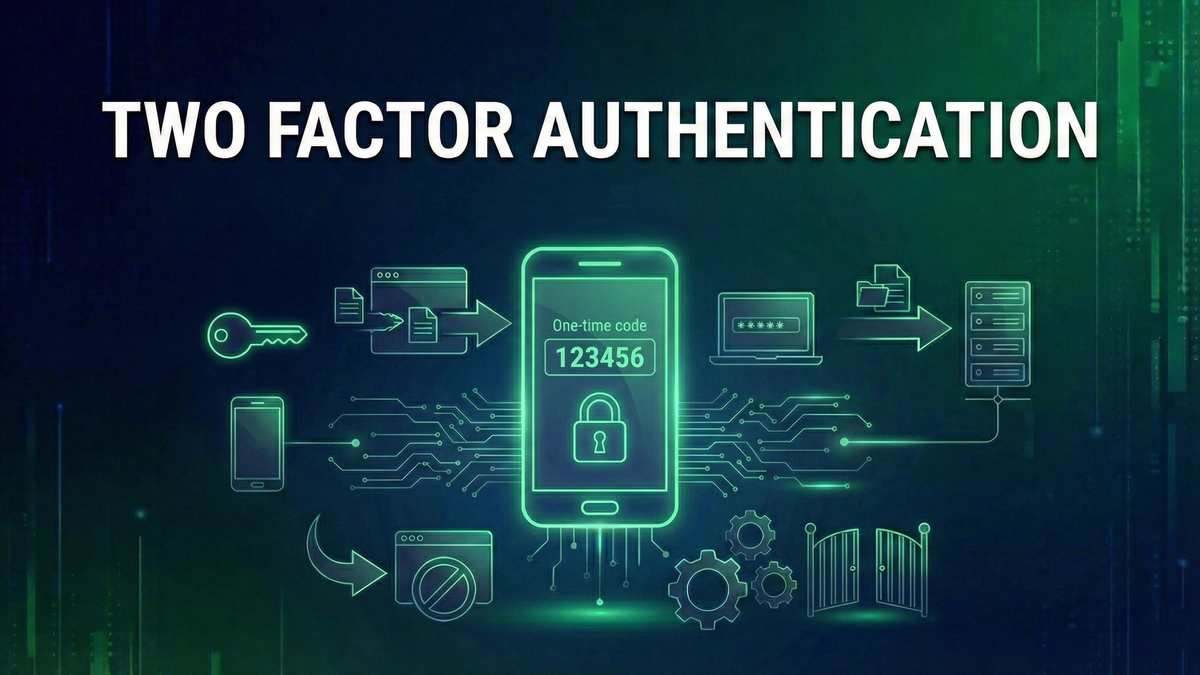
What is Two-Factor Authentication (2FA)? The Complete Guide to Account Security
Learn what two-factor authentication is, how different 2FA methods work, why it's essential for protecting your accounts, and how to set it up step by step.
Your password alone is no longer enough to protect your online accounts. Data breaches expose billions of passwords annually, and sophisticated attackers can crack, guess, or steal passwords through various techniques. Two-factor authentication (2FA) adds a critical second layer of security that can stop attackers even when they have your password.
This guide explains what two-factor authentication is, how different methods work, why it matters for your security, and how to set it up on your most important accounts. Whether you're new to 2FA or looking to upgrade from SMS codes to more secure methods, you'll find practical guidance here.
What is Two-Factor Authentication?
Two-factor authentication (2FA) is a security method that requires two different types of verification before granting access to an account. Instead of just entering a password, you also provide a second piece of evidence proving you're the legitimate account owner.
The concept builds on 'authentication factors'—categories of evidence that prove identity. Security experts recognize three main factors: something you know (password, PIN, security question), something you have (phone, security keySecurity Key🛡️A physical hardware device used for authentication, providing stronger protection than SMS or app-based 2FA., smart card), and something you are (fingerprint, face, voice). True two-factor authentication requires factors from two different categories.
Why Two Factors Work
The power of 2FA lies in requiring different types of proof. If an attacker steals your password (something you know), they still can't access your account without your phone or security key (something you have). To compromise a 2FA-protected account, an attacker must successfully attack two completely different systems—dramatically increasing the difficulty and cost of an attack.
Types of Two-Factor Authentication
SMS Text Message Codes
SMS-based 2FA sends a numeric code to your phone via text message. You enter this code after your password to complete login. It's the most common form of 2FA because nearly everyone has a phone capable of receiving texts.
However, SMS is the weakest form of 2FA. Attackers can intercept texts through SIM swapping (convincing your carrier to transfer your number to their SIM card), SS7 network vulnerabilities (exploiting flaws in the telephone network), malware on your phone, or social engineeringSocial Engineering🛡️The psychological manipulation of people into performing actions or divulging confidential information, exploiting human trust rather than technical vulnerabilities. carrier employees. Despite these weaknesses, SMS 2FA is still significantly better than no 2FA at all.
Authenticator Apps (TOTP)
Authenticator apps like Google Authenticator, Microsoft Authenticator, and Authy generate time-based one-time passwords (TOTP). These are 6-digit codes that change every 30 seconds. The codes are generated locally on your device using a shared secret established when you set up 2FA—no network connection required.
TOTP is more secure than SMS because codes are generated on your device, not transmitted over vulnerable networks. There's no phone number to hijack, no texts to intercept. The main risk is losing access to your authenticator app without backup codes. Popular authenticator apps include Google Authenticator (simple, no cloud sync), Authy (cloud backup, multi-device), Microsoft Authenticator (includes password managerPassword Manager🛡️Software that securely stores and auto-fills passwords, generating strong unique passwords for each account.), and 1Password/Bitwarden (built into password managers).
Push Notifications
Some services send push notifications to their mobile app asking you to approve or deny login attempts. You see details about the login (location, device) and tap to approve. This is convenient and reasonably secure, though it requires the specific service's app. The risk is 'prompt bombing'—attackers repeatedly sending push requests hoping you'll accidentally approve one.
Hardware Security Keys
Hardware security keys like YubiKey, Google Titan, and Thetis are physical devices that plug into your computer's USB port or communicate via NFC with your phone. They use cryptographic protocols (FIDO2/WebAuthn) that are virtually impossible to phish or intercept remotely.
Security keys provide the strongest form of 2FA available to consumers. They're immune to phishingPhishing🛡️A social engineering attack using fake emails or websites to steal login credentials or personal info. because the key cryptographically verifies it's communicating with the legitimate website. Google reported that after requiring security keys for all employees, successful phishing attacks dropped to zero. The downside is cost ($25-50 per key) and the need to carry a physical device.
Biometric AuthenticationBiometric Authentication🛡️Using physical characteristics like fingerprints or facial recognition to verify identity.
Fingerprints, face recognition, and other biometrics are 'something you are' factors. On mobile devices, biometrics often serve as a convenient way to unlock access to your authenticator app or approve push notifications. True biometric 2FA (using biometrics as the second factor to a password) is less common but growing, particularly in enterprise environments.
2FA vs. MFA: What's the Difference?
Multi-factor authentication (MFA) is the broader term encompassing any authentication using multiple factors. Two-factor authentication specifically means exactly two factors. In practice, the terms are often used interchangeably for consumer applications.
High-security environments may require MFA with three or more factors. For example, accessing a classified system might require a password (know), a smart card (have), and a fingerprint (are). For most personal accounts, proper 2FA provides excellent protection.
Why Two-Factor Authentication Matters
Passwords Are Constantly Compromised
Billions of passwords have been exposed in data breaches. Attackers compile these into massive databases used for credential stuffing attacks—automated attempts to log into thousands of sites using leaked username/password combinations. If you've reused passwords, a breach anywhere affects your accounts everywhere. 2FA stops credential stuffing cold, even with a compromised password.
Phishing Attacks Are Sophisticated
Modern phishing attacks create pixel-perfect replicas of legitimate login pages. Even security-conscious users can be fooled. While basic 2FA doesn't completely stop phishing (attackers can relay codes in real-time), hardware security keys with FIDO2 are phishing-proof. Any form of 2FA raises the bar significantly, turning a simple credential theft into a much more complex attack.
The Numbers Don't Lie
According to Microsoft, enabling 2FA blocks 99.9% of automated account attacks. Google found that SMS 2FA stopped 100% of automated bots, 96% of bulk phishing attacks, and 76% of targeted attacks. Hardware security keys blocked 100% of all attack types in Google's study. The security improvement from any form of 2FA is substantial.
Which Accounts Need 2FA?
Critical Priority (Enable Immediately)
High Priority
Recommended
How to Set Up Two-Factor Authentication
Step 1: Choose Your 2FA Method
For most people, an authenticator app provides the best balance of security and convenience. Download Google Authenticator, Authy, or Microsoft Authenticator on your phone. If you use a password manager like 1Password or Bitwarden, they have built-in TOTP support. For maximum security on your most critical accounts, consider purchasing a hardware security key.
Step 2: Find Security Settings
Log into the account you want to protect and navigate to security settings. Look for options labeled 'Two-Factor Authentication,' 'Two-Step Verification,' '2FA,' or 'MFA.' The exact location varies by service—often under Settings > Security or Account > Privacy & Security.
Step 3: Enroll Your Second Factor
For authenticator apps, you'll typically scan a QR code displayed on screen. Your app will then show a 6-digit code—enter it to verify setup worked. For SMS, enter your phone number and verify with a code sent via text. For security keys, insert the key and tap it when prompted.
Step 4: Save Your Backup Codes
Most services provide backup codes during 2FA setup. These one-time codes let you access your account if you lose your second factor. Print them and store them securely (not digitally). Treat backup codes like a spare key to your house—essential for emergencies but dangerous if found by the wrong person.
Step 5: Verify Everything Works
Log out and log back in to verify 2FA is working. Make sure you can successfully authenticate using your second factor. Test your backup codes by using one (then mark it as used). Confirm you can access your account from all devices you regularly use.
2FA Best Practices
Always Have Backup Access
Upgrade from SMS When Possible
Protect Your Second Factor
Common 2FA Problems and Solutions
Lost Access to Authenticator
If you lose your phone or authenticator app, use your backup codes to log in. Once in, disable the old 2FA method and set up a new one. If you don't have backup codes, you'll need to go through the service's account recovery process—which can take days and require identity verification. This is why saving backup codes is essential.
Codes Not Working
TOTP codes depend on accurate time. If your phone's clock is wrong, codes won't work. Enable automatic time sync in your phone settings. Also verify you're using the code for the correct account—authenticator apps store many accounts, and it's easy to use the wrong one.
Getting a New Phone
Before switching phones, transfer your authenticator app. Authy syncs automatically across devices. For Google Authenticator, use the transfer feature to move accounts to your new phone before wiping the old one. Alternatively, log into each account, disable 2FA, then re-enable it on the new device.
Conclusion
Two-factor authentication is one of the most effective security measures available to everyday users. By requiring proof of both something you know and something you have, 2FA dramatically reduces the risk of account compromise—even when passwords are stolen or guessed.
Start by enabling 2FA on your most critical accounts: email, password manager, and financial services. Use an authenticator app rather than SMS when possible. Save your backup codes securely. Consider a hardware security key for accounts that support it.
The few extra seconds 2FA adds to each login are a tiny investment for the protection it provides. In a world where password breaches are constant and phishing attacks increasingly sophisticated, that second factor is often the only thing standing between attackers and your accounts.
Keep Learning
Related Reviews
Cisco Duo Review: Enterprise MFA Made Simple
Cisco Duo delivers robust multi-factor authentication with one of the smoothest user experiences in the enterprise MFA space. While pricing can escalate quickly for larger teams, its device trust and adaptive policies make it a solid choice for security-conscious organizations.

Best VPNs for 2025: Top Pick for Privacy, Streaming, and Security
Our top VPN recommendation for 2025 delivers fast speeds, servers in 90+ countries, military-grade encryption, and reliable streaming access—everything you need for online privacy.
REOLINK 4K Security Camera System Review: Professional PoE Surveillance at DIY Prices
The REOLINK 4K PoE security system delivers 8MP clarity, smart person/vehicle detection, 24/7 recording with 4TB storage, and plug-and-play installation for comprehensive home surveillance.