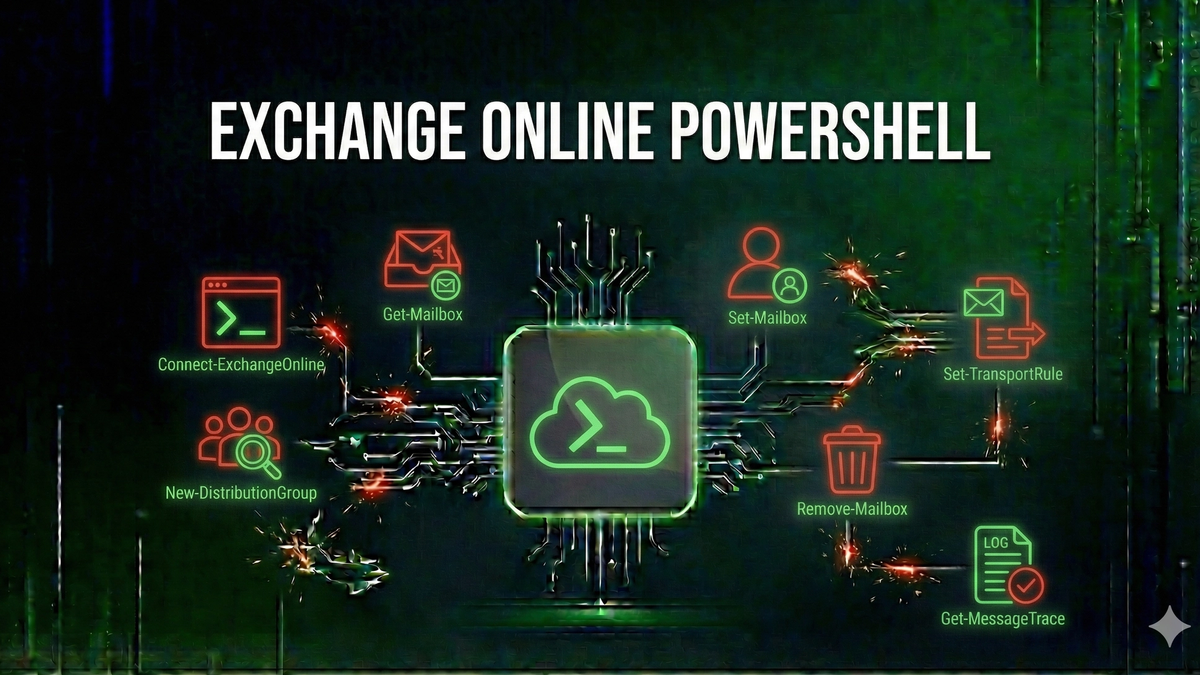
Exchange Online PowerShell for IT Administrators: Essential Commands and Scripts
Master Exchange Online PowerShell with essential commands for managing mailboxes, mobile devices, mail flow, and security settings.
PowerShell is the Swiss Army knife of Microsoft 365Microsoft 365🌐Microsoft's subscription-based cloud productivity suite including Office applications, Exchange Online, SharePoint, and Teams. administration. While the admin center provides a graphical interface for common tasks, PowerShell unlocks capabilities that simply aren't available through the web portal—bulk operations, detailed reporting, automation, and granular configuration changes that would take hours to accomplish manually.
This guide covers the essential Exchange OnlineExchange Online🌐Microsoft's cloud-based email and calendaring service, part of Microsoft 365, that hosts mailboxes in Microsoft's data centers. PowerShell commands that every IT administrator should know.
Getting Started with Exchange Online PowerShell
Before running Exchange Online commands, you need to install the Exchange Online PowerShell module and establish a connection to your tenant.
# Install the Exchange Online PowerShell module
Install-Module -Name ExchangeOnlineManagement -Force -AllowClobber

# Connect to Exchange Online
Connect-ExchangeOnline -UserPrincipalName admin@contoso.com
Mailbox Management Commands
# Get all user mailboxes
Get-Mailbox -ResultSize Unlimited

# Get mailbox statistics
Get-MailboxStatistics -Identity "user@contoso.com"

# Export mailbox list to CSV
Get-Mailbox -ResultSize Unlimited |
  Select-Object DisplayName, UserPrincipalName, PrimarySmtpAddress |
  Export-Csv -Path "Mailboxes.csv" -NoTypeInformation
Mobile Device Management Commands
Managing mobile devices is critical for security, especially with the upcoming Exchange ActiveSync changes. See our guide on What is Exchange ActiveSync for background.
Auditing Exchange ActiveSync Versions
With Microsoft requiring EAS 16.1 or higher starting March 2026 (see Microsoft to Block Outdated Exchange ActiveSync Devices), this audit command is essential:
# Find devices running EAS versions below 16.1
Get-MobileDevice | Where-Object {
  ($_.ClientType -eq 'EAS' -or $_.ClientType -match 'ActiveSync') -and
  $_.ClientVersion -and
  ([version]$_.ClientVersion -lt [version]'16.1')
} | Sort-Object UserDisplayName |
Select-Object UserDisplayName, UserPrincipalName, DeviceModel, ClientVersion
Mail Flow and Transport Rules
# Get all transport rules
Get-TransportRule | Select-Object Name, State, Priority

# Add disclaimer to external emails
New-TransportRule -Name "External Email Disclaimer" `
  -FromScope "InOrganization" `
  -SentToScope "NotInOrganization" `
  -ApplyHtmlDisclaimerText "<p>This email is confidential.</p>"
Security and Compliance Commands
For comprehensive mobile security, see our guide on Microsoft 365 Mobile Device Management.
# Search audit log
Search-UnifiedAuditLog -StartDate (Get-Date).AddDays(-7) `
  -EndDate (Get-Date) -RecordType ExchangeItem

# Grant mailbox permissions
Add-MailboxPermission -Identity "shared@contoso.com" `
  -User "user@contoso.com" -AccessRights FullAccess
Key Takeaways
Keep Learning
Frequently Asked Questions
Is it safe to run PowerShell scripts in production?
Yes, with proper controls. Use Constrained Language Mode, enable script block logging, require code signing, and implement just-in-time administration. This guide covers these hardening techniques in detail.
What are the most critical security settings in Microsoft 365?
Enable Security DefaultsSecurity Defaults🛡️A set of basic identity security settings in Microsoft Entra ID that enable MFA, block legacy authentication, and protect privileged accounts—recommended for organizations without premium licenses. or Conditional AccessConditional Access🛡️A Microsoft Entra IDMicrosoft Entra ID🛡️Microsoft's cloud-based identity and access management service (formerly Azure Active Directory), providing authentication, SSO, and security features for Microsoft 365 and other applications. feature that evaluates signals about users, devices, and locations to make real-time access decisions., require MFA for all users, disable legacy authenticationLegacy Authentication🛡️Older authentication protocols (POP, IMAP, SMTP AUTH, older Office clients) that don't support modern security features like MFA, making them prime targets for credential attacks., configure alert policies, and regularly review the Microsoft Secure Score recommendations.
Who should read this Exchange Online PowerShell guide?
This advanced-level guide is written for IT professionals, security analysts, and system administrators working in network infrastructure. Beginners will find foundational concepts, while experienced practitioners can use it as a reference.
What will I learn from this article?
Master Exchange Online PowerShell with essential commands for managing mailboxes, mobile devices, mail flow, and security settings.
Related Reviews

Best VPNs for 2025: Top Pick for Privacy, Streaming, and Security
Our top VPN recommendation for 2025 delivers fast speeds, servers in 90+ countries, military-grade encryption, and reliable streaming access—everything you need for online privacy.
REOLINK 4K Security Camera System Review: Professional PoE Surveillance at DIY Prices
The REOLINK 4K PoE security system delivers 8MP clarity, smart person/vehicle detection, 24/7 recording with 4TB storage, and plug-and-play installation for comprehensive home surveillance.
Ring Outdoor Cam Pro Review: 4K Security Camera with Radar-Powered Motion Detection
The Ring Outdoor Cam Pro delivers Retinal 4K video, 10x enhanced zoom, Low-Light Sight for true color night vision, and radar-powered 3D motion detection for precise security alerts.