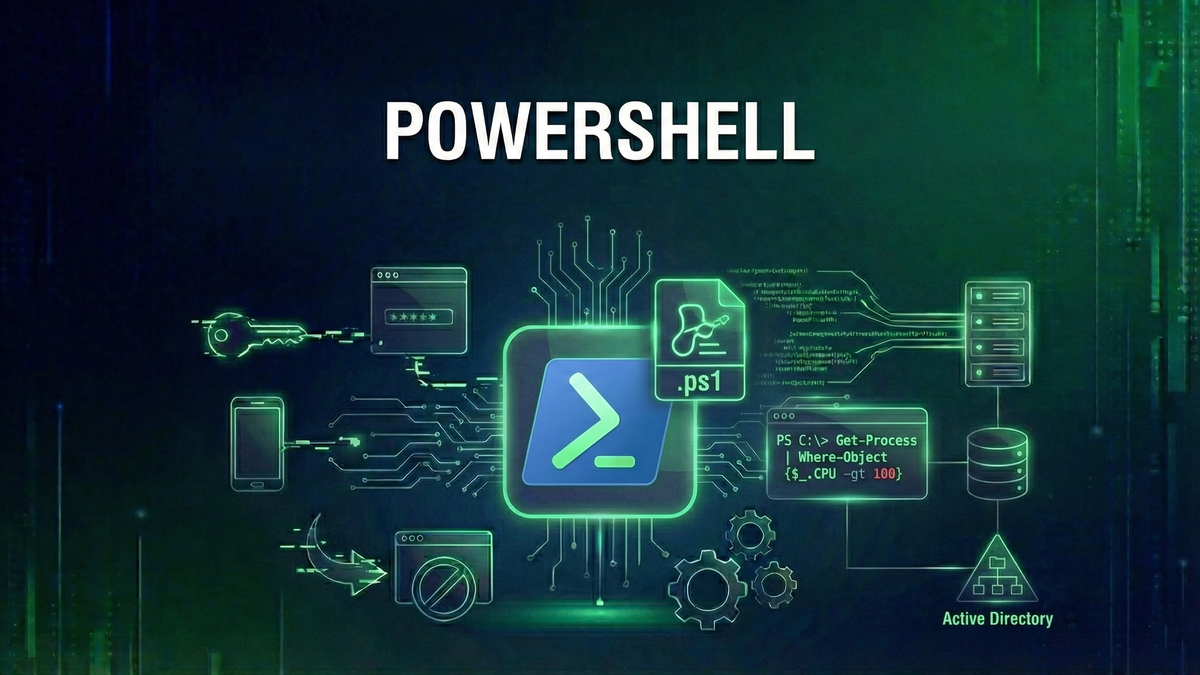
PowerShell Security Best Practices: A Complete Hardening Guide for IT Administrators
Comprehensive guide to securing PowerShell in enterprise environments. Learn execution policies, logging, constrained language mode, JEA, and how to defend against PowerShell-based attacks.
PowerShell is simultaneously one of the most powerful tools in a Windows administrator's arsenal and one of the most exploited attack vectors in modern cyberattacks. Its deep integration with Windows, ability to execute code in memory, and access to .NET Framework make it invaluable for automation—and equally valuable for attackers.
Ransomware groups routinely use PowerShell for initial access, lateral movementLateral Movement🛡️Techniques attackers use to move through a network after initial compromise, seeking additional systems to control and data to steal., and payload delivery. Nation-state APTs leverage it for persistence and data exfiltrationData Exfiltration🛡️The unauthorized transfer of data from a computer or network, often performed by attackers before deploying ransomware to enable double extortion.. Red teams consider it essential for offensive operations. Understanding how to secure PowerShell isn't optional—it's essential for any Windows environment.
This guide covers everything you need to know about securing PowerShell: from basic execution policies to advanced techniques like Just Enough Administration (JEA) and constrained language mode. Whether you're hardening a small business network or an enterprise environment, these practices will significantly reduce your PowerShell attack surface.
Why Attackers Love PowerShell
Before diving into defenses, understand why PowerShell is so attractive to attackers:
1. It's Already There
PowerShell is installed by default on every modern Windows system. Attackers don't need to upload tools—they use what's already present. This is called 'living off the landLiving Off the Land🛡️An attack technique where adversaries use legitimate, pre-installed system tools (like PowerShell, WMI, or certutil) rather than custom malware, making detection more difficult.' and makes detection significantly harder.
2. Trusted by Default
PowerShell is a legitimate administrative tool. Security software often allows PowerShell activity that would block unknown executables. This trusted status provides attackers with cover.
3. Memory-Only Execution
PowerShell can execute code entirely in memory, never touching disk. This bypasses traditional antivirus that scans files. Fileless malware leverages this capability extensively.
4. Powerful Capabilities
PowerShell can access the Windows API, interact with .NET Framework, manage Active Directory, access network resources, modify the registry, create scheduled tasks, and download and execute remote content. This power is exactly what attackers need.
5. Obfuscation is Easy
PowerShell commands can be heavily obfuscated. A simple download-and-execute command can be encoded, split across variables, and made nearly unrecognizable while remaining functional. This makes signature-based detection challenging.
Common attack patterns include download cradles (fetch and execute remote scripts), fileless malware (execute entirely in memory), encoded commands (Base64 to bypass detection), AMSI bypass (disable anti-malware scanning), constrained language bypass (escape restricted modes), and living off the land (use built-in cmdlets maliciously).
1. Execution Policies: The First Line of Defense
Execution policies control which PowerShell scripts can run. They're not a security boundary (they can be bypassed), but they prevent accidental execution of untrusted scripts.
Available Execution Policies
Restricted allows no scripts to run (highest security but impractical). AllSigned requires all scripts to be signed by a trusted publisher (high security). RemoteSigned allows local scripts but requires remote scripts to be signed (medium security, default for servers). Unrestricted allows all scripts with warnings for remote (low security). Bypass blocks nothing with no warnings (no security).
Check and Set Policy
Check your current policy with Get-ExecutionPolicy -List. For workstations, use Set-ExecutionPolicy RemoteSigned -Scope LocalMachine. For servers, use Set-ExecutionPolicy AllSigned -Scope LocalMachine. For high-security environments, set AllSigned at both LocalMachine and CurrentUser scopes.
Important Caveats
Execution policies can be bypassed. Attackers commonly use powershell.exe -ExecutionPolicy Bypass -File malicious.ps1, or -EncodedCommand with Base64, or piping content directly. Execution policies are a safety net preventing accidents, not a security boundary stopping determined attackers.
Enforce via Group Policy
To prevent users from changing execution policyExecution Policy🛡️A PowerShell security feature that determines the conditions under which PowerShell loads configuration files and runs scripts, ranging from Restricted (no scripts) to Bypass (no restrictions)., use Group Policy: Computer Configuration → Administrative Templates → Windows Components → Windows PowerShell → Enable 'Turn on Script Execution' and set to 'Allow only signed scripts'.
2. PowerShell Logging: Visibility is Everything
You can't defend against what you can't see. PowerShell offers robust logging capabilities—but they're not enabled by default. Enable them immediately.
Module Logging
Module Logging records pipeline execution details for specified modules. Enable via Group Policy under Windows PowerShell → 'Turn on Module Logging' and set module names to * (all modules). This captures what commands are run and their parameters.
Script Block Logging
Script Block Logging records the actual content of scripts, including dynamically generated code. This is crucial for detecting obfuscated attacks because it logs the deobfuscated code before execution. Enable 'Turn on PowerShell Script Block Logging' and check 'Log script block invocation start/stop events'.
Transcription
Transcription records all PowerShell input and output to text files—like a complete session transcript. Enable 'Turn on PowerShell Transcription', set an output directory (preferably a network share for central collection), and enable 'Include invocation headers'.
Recommended Logging Configuration
For most environments, enable all three: Script Block Logging (captures actual code), Module Logging (captures execution details), and Transcription (captures interactive sessions). Send logs to a SIEM for analysis and alerting. Log locations are Microsoft-Windows-PowerShell/Operational with Event IDs 4103 for Module Logging and 4104 for Script Block Logging.
3. Constrained Language Mode
Constrained Language Mode (CLM) restricts PowerShell's capabilities, limiting what scripts can do even if they execute.
What CLM Restricts
In Full Language mode, all .NET types are available, COM objects are allowed, Add-Type works, arbitrary methods are permitted, and reflection is allowed. In Constrained mode, only core types are available, COM objects are blocked, Add-Type is blocked, arbitrary methods are blocked, and reflection is blocked. Check your current mode with $ExecutionContext.SessionState.LanguageMode.
Enabling CLM
CLM is typically enforced through Windows Defender Application Control (WDAC) which is the recommended approach, or AppLocker which is legacy but still functional. WDAC creates policy-based enforcement that enables CLM automatically when scripts aren't explicitly trusted.
What CLM Prevents
Many attack techniques fail in CLM: loading arbitrary .NET assemblies, calling Win32 APIs directly, using reflection to bypass restrictions, and many fileless attack techniques. However, some legitimate scripts may break, so testing before deployment is essential.
4. Disable PowerShell 2.0
PowerShell 2.0 is the escape hatch attackers use to bypass modern security controls. This is critical to address.
Why PowerShell 2.0 is Dangerous
PowerShell 2.0 doesn't support AMSI (anti-malware scanning), doesn't support Script Block Logging, ignores Constrained Language Mode, and still ships with Windows for backward compatibility. All your logging, CLM, and AMSI protections are worthless if an attacker can simply run powershell.exe -version 2.
How to Disable
Check if installed with Get-WindowsOptionalFeature -Online -FeatureName MicrosoftWindowsPowerShellV2. Disable it with Disable-WindowsOptionalFeature -Online -FeatureName MicrosoftWindowsPowerShellV2Root. Via DISM: dism /online /disable-feature /featurename:MicrosoftWindowsPowerShellV2Root. Disable PowerShell 2.0 on every system that doesn't absolutely require it—and almost none do.
5. AMSI: Anti-Malware Scan Interface
AMSI allows security software to scan PowerShell content before execution. It sees deobfuscated code, making signature-based detection much more effective.
How AMSI Works
PowerShell sends script content to AMSI, which passes it to registered security providers (Windows Defender, etc.). The security provider scans and returns a verdict. PowerShell blocks execution if malware is detected. AMSI covers PowerShell scripts, VBScript and JScript, Windows Script Host, Office VBA macros, and .NET (4.8+).
AMSI Bypass Attempts
Attackers try to disable AMSI using various techniques. Your SIEM should alert on patterns like references to System.Management.Automation.AmsiUtils, AmsiInitFailed, or amsiContext. Protect AMSI by keeping Windows Defender updated, monitoring for bypass attempts, using tamper protection, and alerting on AMSI-related error messages.
6. Just Enough Administration (JEA)
JEA provides delegated administration with minimal privileges. Instead of giving helpdesk full admin access, give them exactly the commands they need.
How JEA Works
Create a Role Capability file defining allowed commands. Create a Session Configuration registering the endpoint. Users connect to the JEA endpoint with restricted permissions. Commands run as a virtual account or gMSA (Group Managed Service Account).
Example: Helpdesk Password Reset
Create a Role Capability file (HelpDesk.psrc) that defines visible cmdlets like Get-ADUser, Set-ADAccountPassword (with limited parameters), and Unlock-ADAccount. Create a Session Configuration (HelpDesk.pssc) with SessionType RestrictedRemoteServer, RunAsVirtualAccount true, and RoleDefinitions mapping DOMAIN\HelpDesk to the HelpDesk capability. Register with Register-PSSessionConfiguration.
JEA Benefits
JEA provides principle of least privilege, full audit trail, no persistent admin credentials, and reduced attack surface. Users connect via Enter-PSSession -ComputerName Server01 -ConfigurationName HelpDeskEndpoint and can only run the specific commands you've allowed.
7. Secure Remote PowerShell (WinRM)
PowerShell Remoting uses WinRM and can be a lateral movement vector if not secured.
Restrict WinRM Access
Limit who can use PowerShell remoting with Set-PSSessionConfiguration -Name Microsoft.PowerShell -ShowSecurityDescriptorUI. Use HTTPS for WinRM by creating a certificate and configuring an HTTPS listener. Restrict firewallFirewall🌐Security system that monitors and controls network traffic based on predetermined rules. rules to management networks with Set-NetFirewallRule -Name WINRM-HTTP-In-TCP -RemoteAddress 10.0.0.0/8.
Disable Where Not Needed
On systems that don't need PowerShell remoting, disable WinRM entirely with Stop-Service WinRM and Set-Service WinRM -StartupType Disabled.
8. Monitoring and Detection
Comprehensive monitoring is essential for detecting PowerShell-based attacks.
Key Events to Monitor
Monitor Event ID 4103 (Module logging) in PowerShell/Operational at medium priority. Event ID 4104 (Script block logging) is high priority. Event IDs 4105 and 4106 track script block start/stop. Event ID 400 and 403 in Windows PowerShell log track engine start/stop. Event ID 800 tracks pipeline execution.
Suspicious Patterns to Alert On
Alert on download cradles: Invoke-WebRequest, Invoke-RestMethod, Net.WebClient, DownloadString, DownloadFile, BitsTransfer. Alert on encoding and obfuscation: -EncodedCommand, -enc, FromBase64String, [Convert]::. Alert on AMSI bypass attempts: AmsiUtils, AmsiInitFailed, amsiContext. Alert on execution methods: Invoke-Expression, IEX, Invoke-Command.
SIEM Rules
Create alerts for PowerShell execution by unusual users, download cradle patterns, Base64 encoded commands over certain length, AMSI-related errors, PowerShell 2.0 execution, WinRM connections from unexpected sources, and large script blocks (potential payload).
9. Application Control
Beyond execution policies, consider application control to restrict PowerShell usage entirely where not needed.
Windows Defender Application Control (WDAC)
Block PowerShell for standard users while allowing it for administrators. Create WDAC policies with file path rules that deny PowerShell execution for non-admin users. This provides stronger protection than execution policies.
AppLocker
Create AppLocker rules allowing PowerShell only for specific groups. Use publisher rules to allow only IT administrators to run PowerShell. Test thoroughly before deployment and document exceptions.
10. Security Checklist
Use this checklist for PowerShell hardening:
Logging
Execution Policy
PowerShell 2.0
Language Mode
Remote Access
Conclusion
PowerShell security is not about blocking PowerShell—it's about controlling and monitoring its use. Complete blocking is impractical; PowerShell is essential for modern Windows administration. Instead, implement defense in depthDefense in Depth🛡️A security strategy using multiple layers of protection so that if one layer fails, other layers continue to provide security..
Key principles: Prevent casual misuse with execution policies. See everything with comprehensive logging. Limit capabilities with Constrained Language Mode. Remove escape hatches by disabling PowerShell 2.0. Detect attacks with AMSI and monitoring. Minimize privileges with JEA. Secure remote access with WinRM hardening.
Your PowerShell environment should work for your administrators, not for attackers. Implement these controls, monitor for abuse, and stay current with security updates.
Keep Learning
Frequently Asked Questions
How can I protect my organization from this type of attack?
Protection requires a multi-layered approach including regular backups, security awareness training, endpoint protection, network segmentation, and keeping systems patched. This guide covers specific defensive measures in detail.
How do I know if my systems are affected by these vulnerabilities?
Check vendor advisories for affected versions, use vulnerabilityVulnerability🛡️A weakness in software, hardware, or processes that can be exploited by attackers to gain unauthorized access or cause harm. scanners, review your asset inventory, and monitor CISA's Known Exploited Vulnerabilities catalog for active threats requiring immediate attention.
Is it safe to run PowerShell scripts in production?
Yes, with proper controls. Use Constrained Language Mode, enable script block logging, require code signing, and implement just-in-time administration. This guide covers these hardening techniques in detail.
What will I learn from this article?
Comprehensive guide to securing PowerShell in enterprise environments. Learn execution policies, logging, constrained language mode, JEA, and how to defend against PowerShell-based attacks.
Related Reviews
REOLINK 4K Security Camera System Review: Professional PoE Surveillance at DIY Prices
The REOLINK 4K PoE security system delivers 8MP clarity, smart person/vehicle detection, 24/7 recording with 4TB storage, and plug-and-play installation for comprehensive home surveillance.
Ring Outdoor Cam Pro Review: 4K Security Camera with Radar-Powered Motion Detection
The Ring Outdoor Cam Pro delivers Retinal 4K video, 10x enhanced zoom, Low-Light Sight for true color night vision, and radar-powered 3D motion detection for precise security alerts.
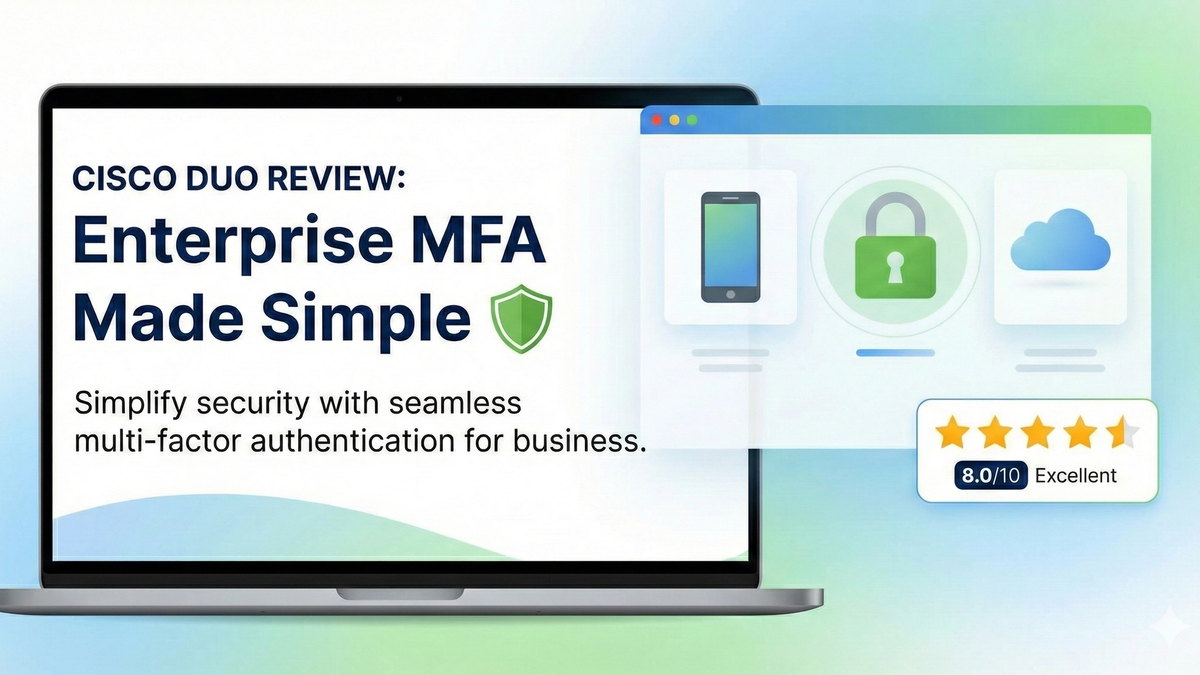
Cisco Duo Review: Enterprise MFA Made Simple
Cisco Duo delivers robust multi-factor authentication with one of the smoothest user experiences in the enterprise MFA space. While pricing can escalate quickly for larger teams, its device trust and adaptive policies make it a solid choice for security-conscious organizations.